






































What are BYO modem NBN plans?
When you sign up for a new NBN plan, many providers will offer the option to either bring your own modem, or add one on to your plan.
If you already have an NBN-compatible modem, or would prefer to buy your own device rather than receiving one from an internet provider, there are plenty of options available for NBN plans without modems — known as BYO modem NBN plans.
Choosing a BYO modem plan can be a way to keep costs down when switching NBN plans. It’s often cheaper than adding on a modem (which can easily cost around $100-$200 or more) or being locked in with one provider just for a ‘free’ modem.
Which providers offer the option to BYO modem?
Some providers don’t offer the option to BYO modem, as they require you to use their pre-configured modem. However, most of the big name and popular providers offer BYO modem plans so you’ll have plenty of options to choose from.
Here are some providers from Canstar’s database offering BYO modem plans:
- Amaysim
- Aussie Broadband
- Belong
- Dodo
- iiNet
- Kogan Internet
- Mate
- Moose Mobile
- Optus
- SpinTel
- Superloop
- Tangerine
- Telstra
- TPG
Is a BYO modem NBN plan right for me?
If you’re happy with your current modem and you’re simply switching NBN plans, you might prefer to choose a BYO modem plan. If you got your modem from your current NBN provider, just make sure that your modem isn’t locked to that provider before taking it to a new NBN plan.
Keep in mind that if your modem is several years old, it might not be compatible with some of the faster NBN speed tiers. Providers may list the BYO modem requirements on their website and which modems are compatible with their plans. If you’re still unsure, you can reach out to your new NBN provider — just have your modem details on hand.
You may prefer to sign up to a BYO modem plan if you’re not happy with the modems on offer from the various internet providers — or perhaps your provider of choice doesn’t offer the modem you want. In this case, you can buy your preferred modem outright, then sign up to a BYO modem NBN plan.
Modem vs router: What is the difference?
The terms ‘modem’ and ‘router’ are often used interchangeably, but the two devices aren’t the same. A modem connects a home to the internet, while a router allows devices within a home to access that connection, via a cable or via WiFi. However, most homes now use hybrid modem-routers, where you simply need to plug and play with one device rather than two.
What modem do I need for NBN?
How fast and reliable your internet speed is can be dependent on your modem. If you live in a larger household with high-internet needs, you may need a modem with more features and capabilities than a basic device, such as dual-band technology or a larger WiFi range. Many of the fast-speed NBN plans require a newer modem in order to reach these speeds. Newer generation modems will have a higher generation number, such as WiFi 6 (802.11ax) or WiFi 7 (802.11be).
If you want a fast-speed NBN plan — and your home has the technology type to support it — NBN Co advises that WiFi 5 router/modems, or router/modems bought before 2019, might not be capable of reaching very fast speeds. If you’ve had your modem for a while and want a faster NBN plan, it might be time to upgrade to a newer device.
If you’re getting the free NBN fibre upgrade, your NBN provider may give you a new modem as part of this upgrade process if you have outdated technology.
Can I use my own modem with a new NBN plan?
Generally, if you have an unlocked modem that is compatible with your new plan, you should be able to use it if you’re switching NBN plans at the same address. If you’re switching plans at a different address which has a different NBN connection type, you may need to check if your modem/router is compatible with that connection.
Before signing up to a new NBN plan, it’s a good idea to check with your new provider to see if your current modem is compatible.
Do I have an NBN compatible modem-router?
Most newer modems are already NBN-ready, especially if it’s a device you received from an internet service provider, but this isn’t always a guarantee.
For homes with FTTN or FTTB connection types which are unable to reach the faster NBN speeds, you’ll need a VDSL2 modem.
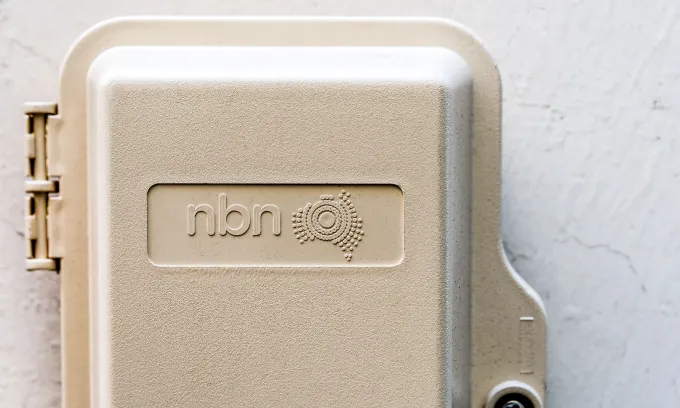
Other connection types, such as FTTP, FTTC, and HFC, use a specially-installed NBN connection box, known as a Network Termination Device, that you’ll need to pair with a modem/router or gateway with an Ethernet WAN port.
How do I configure an NBN modem for WiFi?
Every modem or router is different, whether you’ve purchased it from an internet provider or retailer. If you’ve bought a new modem — or signed up for a new internet plan — then you’ll likely have received instructions in the box, or a setup guide from your provider. Modems purchased from an internet provider may already be configured and you’ll simply just plug in and go.
However, if you need to configure an NBN modem yourself, here are some general steps you’ll need to take.
- Sign up for a NBN plan and make sure it’s been activated by your provider.
- Plug in all of the cables for your modem, and ensure it’s connected to a power point and any essential equipment where necessary, such as the NBN connection box. Switch it on, and wait five to 10 minutes for it to fully start up and all device lights to go green.
- Once you know that your NBN plan is active, connect to your modem’s network via either Ethernet cable or WiFi. You can do this using any internet-ready device over WiFi, but a laptop or tablet may be easiest.
- Find the gateway IP address, located on the back of your modem. It will be a sequence of numbers that looks something like this: 00.13.11.189 (it will be a different number to this). This address needs to be entered into the URL bar of your internet browser on the device you’ve connected to your modem’s network. You won’t be able to browse the internet normally, but the gateway IP address will load anyway.
- Once it’s loaded, enter your modem’s username and password in the appropriate fields to log into your modem’s network. Again, this information should be available on the back of your modem, or on a card in the modem box.
- After you’ve logged in, a homepage may appear with a range of different options. You may also be presented with a ‘setup wizard’ that will guide you through the process. You will most likely be prompted to enter a username and password.
- If you have an existing modem that’s still configured to your old network, you’ll want to replace these details with your new internet name and password (which will be provided by your new ISP). This will be a different username and password to what’s listed on the back of your modem.
- Enter any other required information to complete the setup process. When the internet status in the gateway reads as ‘Connected’, your modem setup is complete!
- If you’ve followed the steps listed here (or those supplied by your internet provider) but you’re still not connected, reach out to your internet provider for assistance.